Chapter 3: Document Design
Designing Technical Documents for Accessibility and Usability
Information in technical documents must be readily accessible and easy to use. In many ways, a well-designed technical document is like a well-designed website. In both, readers should be able to scan the content quickly and locate what they need with minimal effort. Achieving this level of accessibility requires deliberate design choices.
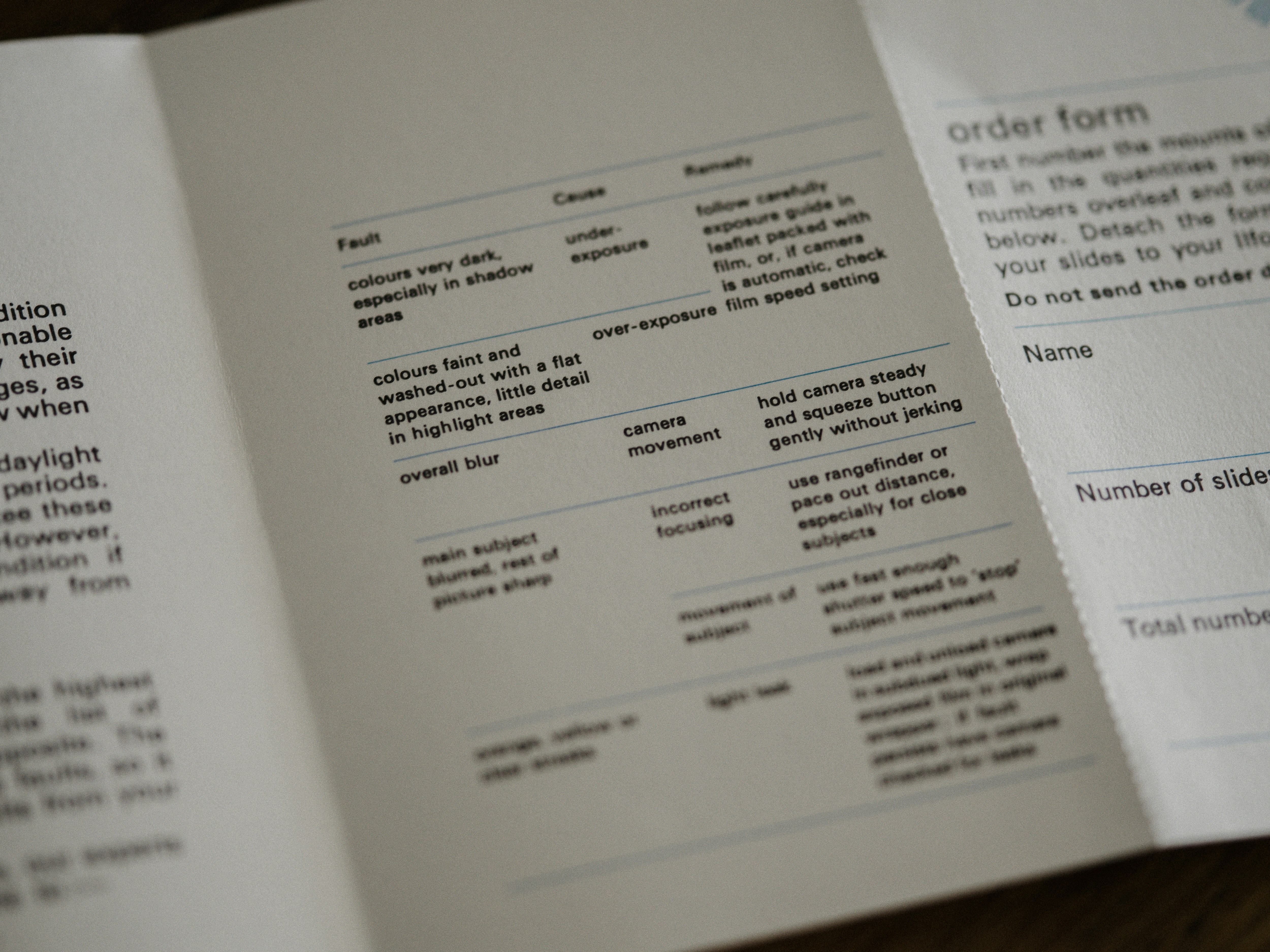
The following four key practices can help you make your technical documents easier to scan and use:
- Control paragraph length to keep information digestible.
- Write clear, well-structured headings to guide readers through the content.
- Use bulleted or numbered lists to present information in concise and scannable form.
- Manage white space to make the page visually clear and inviting.
Let’s look at each of these accessibility features in more detail.
Controlling Paragraph Length
In engineering communication, controlling paragraph length is essential for effective document design and readability. Unnecessarily long paragraphs can create dense blocks of text that are difficult to scan, making it harder for readers to quickly identify key ideas. Conversely, very short paragraphs may disrupt flow or provide insufficient context. There is no universal guideline for limits on the number of words or sentences, as paragraph length will vary depending on the type of technical document. However, regardless of format, every paragraph should convey one clear concept — a single main idea, with supporting details — to keep the writing precise, professional, and user-friendly.
Writing Clear and Structured Headings
Headings are one of the most important tools for organizing technical documents. They help readers quickly understand the flow and hierarchy of information in a document. To be effective, they must be descriptive, concise, and structurally parallel.
Writing Descriptive Headings
Each heading should convey the smallest meaningful unit of your message and include keywords that signal the section’s content. Descriptive headings help readers anticipate what they will learn, so it’s best to avoid
- vague or overly general headings;
- questions, which may confuse readers before they see the main message; or
- abbreviations that readers may not immediately recognize.
Let’s look at the following examples of headings and compare their effectiveness.
⨯ Robotic Technology
⨯ What are the robotic-assisted techniques used in minimally invasive heart surgery?
⨯ RAT in Minimally Invasive Heart Surgery
→ Robotic-Assisted Techniques in Minimally Invasive Heart Surgery
As you review these examples, note how small changes greatly improve clarity. The first heading is too vague, the second is phrased as a question, and the third contains an unclear abbreviation. In contrast, the last heading clearly and directly tells the reader what the section covers.
Note: When it comes to abbreviations in headings, use them only if the shortened form is more familiar to readers than the full name or phrase (e.g., NASA instead of National Aeronautics and Space Administration). Otherwise, write out the full term, followed by the abbreviation in parentheses, as shown in the following example:
Robotic-Assisted Techniques (RAT) in Minimally Invasive Heart Surgery
Keeping Headings Concise
Headings should be descriptive, but they shouldn’t be too lengthy. In most cases, the clearest and most effective headings convey the message in as few words as possible without losing meaning. Let’s examine the following examples and compare their effectiveness.
⨯ A Comprehensive Overview of the Use of Robotic Technology in Various Types of Surgical Procedures on the Heart
→ An Overview of Robotic-Assisted Techniques in Minimally Invasive Heart Surgery
The first heading is wordy and includes unnecessary detail. The improved version is more effective because it conveys the main idea in fewer words.
Using Parallel Grammar in Headings
Once you create a descriptive and concise heading, it should also set the grammatical pattern for the other headings in that section — and ideally for the entire document. Choose a grammatical structure for your first heading and apply it consistently to the rest. The following are examples of headings with consistent grammatical structure:
An Increase in Sea Levels in Coastal Regions
A Decline in Ice Coverage in the Arctic
A Rise in Ocean Temperatures between 2015 and 2025
In this case, each heading is a grammatically parallel noun phrase. This structure makes it easier for readers to scan the document and compare the content of subsections.
Formatting Headings for Visual Hierarchy
Headings should reflect the logical structure of your content. Using levels such as Heading 1, Heading 2, and Heading 3 helps readers see the relationships between main topics and subtopics.
The approach you choose will also depend on the type of document. Shorter reports often use unnumbered headings, while longer reports with multiple sections typically use numbered headings.
Unnumbered Headings — For reports without numbered subsections, you can manipulate the size and weight of the fonts to indicate where specific information fits within the broader hierarchy of the document.
FIRST-LEVEL HEADINGS
These label the main sections of a report. To make them stand out, use a larger font size and consider capitalizing all letters. Leave at least one empty line of white space above and below the heading to separate it clearly from the surrounding text.
Second-Level Headings
These are slightly smaller than first-level headings. Capitalize only the first letter of each word.
Third-level headings. To differentiate these, capitalize only the first letter of the first word. Third-level headings can also be placed on the same line as the text they introduce, separated by a period or a colon.
Additionally, consider using a sans-serif typeface, such as Arial or Calibri, for headings and a serif typeface, such as Times New Roman or Georgia, for body text to further distinguish them visually.
Numbered Headings — For numbered headings, each heading receives a number corresponding to its position in the hierarchy, with indentation levels to reflect their order of importance.
1. FIRST-LEVEL HEADINGS
Label these with whole numbers (e.g., 1.) and use bold, capital letters.
1.1 Second-Level Headings
Indent these slightly and capitalize only the first letter of each word.
1.1.1 Third-level headings: Indent further and capitalize only the first letter of the first word.
You can use as many levels as necessary, but be mindful of page aesthetics. Excessive heading levels can reduce the space for body text and make the document appear cluttered.
Using Bulleted or Numbered Lists
Lists are an effective way to organize information so that readers can quickly scan content. Bulleted lists are best for items without a fixed order, while numbered lists work well for steps in a sequence or points ranked by priority. Properly formatted lists improve readability and make complex information easier to process. To maximize clarity, list items should follow parallel grammatical structure. In other words, each item should begin with the same part of speech and follow a similar grammatical pattern. This consistency helps readers compare points more easily and understand relationships between them. The following example shows how a bulleted list can be used effectively:
When installing a solar panel system, follow these safety precautions:
- Turn off all power sources before beginning any work.
- Wear appropriate protective gear, including insulated gloves and safety glasses.
- Use a stable ladder or scaffolding when working at heights.
- Check weather conditions and avoid installation during rain or high winds.
- Follow manufacturer guidelines for wiring and component connections.
This format helps readers quickly scan and act on each safety point, reducing cognitive load and minimizing the chance of overlooking important steps.
Now, compare with the following example of a numbered list:
The following steps are typical of the engineering design process:
- Identify the Problem — Define the issue or need that requires a solution.
- Research and Gather Information — Study existing solutions, requirements, and constraints.
- Develop Possible Solutions — Brainstorm and generate multiple design concepts.
- Select the Best Solution — Evaluate alternatives and choose the most effective option.
- Build a Prototype — Create a working model to test the proposed design.
- Test and Evaluate — Assess performance, gather feedback, and identify necessary improvements.
- Refine and Implement — Optimize the design and prepare for final production.
Controlling White Space
White space in a document refers to the areas between lines and around blocks of text, images, and headings. Controlling white space is essential for enhancing readability and improving the overall user experience. In engineering documentation, where complex data, formulas, and diagrams are common, well-managed white space can be used to group related content and emphasize key concepts. Conversely, dense, information-heavy pages can overwhelm readers, make scanning difficult, and bury critical information. Excessive white space can make documents look sparse or disorganized. Striking the right balance ensures that documents are visually appealing and optimized for quick reference.
Two main strategies can help you control white space effectively: consistent spacing and consistent alignment.
Consistent spacing refers to line spacing, which includes line height and spacing before and after paragraphs. In technical writing, using single spacing or 1.5 spacing makes your documents easier to read by preventing excessive gaps between the lines in paragraphs. Therefore, it is recommended to set the line spacing value to either single or 1.5. Additionally, pay attention to the before and after paragraph spacing. Keep these values consistent throughout the document.
Consistent alignment is also key to managing white space effectively. Centering content is generally not reader-friendly in technical documents because it disrupts the flow and control of the white space. For example, if you center an image, its caption, and the following heading, you lose control over spacing and alignment. Therefore, it is best to left-align all content, including lists, headings, titles, images, and other components. These strategies reduce potential reader distraction.
Following Style Guides
Style guides are documents that explain how to write and format content in a clear, consistent, and professional way. Common examples include the IEEE Editorial Style Manual or the Chicago Manual of Style (CMOS). They provide clear rules for formatting, terminology, units of measure, and citation practices. Their use is critical in engineering writing, where mistakes stemming from inconsistencies in notation, abbreviations, or formatting can lead to costly errors or safety risks.
Using a style guide also makes it easier to work with others because everyone follows the same formatting and structure. This consistency helps your reports, manuals, or project documents look organized and professional. In the end, a standardized approach makes your writing easier to read, easier to trust, and easier to work with — for both you and your readers.
Note: Style guides may vary depending on the context, but becoming comfortable with using one is an essential skill in both academic and professional writing. In the workplace, you are typically expected to follow the style guide your company adopts. If you are submitting a research article to a journal, you must adhere to the formatting rules specified by that journal. In academic settings, you may follow the style guide provided by your instructor or institution. If you are reading this book as part of the ENCS 282 Technical Writing and Communication course, you can consult the ENCS 282 Technical Writing Style Guide in Appendix A.
Key Takeaways
You will often need to communicate complex information clearly and efficiently. By paying attention to features of document design, you help readers understand and use content more effectively. The following four key strategies can help you make your technical documents easier to scan and use:
- Control paragraph length by ensuring each paragraph communicates one clear idea.
- Write clear, structured headings that are descriptive, concise, and parallel in form.
- Use bulleted or numbered lists appropriately — bullets for unordered items and numbers for sequences or priorities — to organize information and improve scannability.
- Manage white space by keeping spacing and alignment consistent, reducing visual clutter, and enhancing readability.
Applying these principles from your first draft through final editing will help you create technical documents your audience can read, understand, and use with confidence.
Practice Task
 Find a technical document (such as an online user guide or a product manual). First, identify the strengths in the document design. Then, identify areas where the documentation could be improved in terms of the following:
- Paragraph Length — Are paragraphs appropriately structured to support readability and scanning?
- Headings — Do the headings clearly indicate the structure and content of each section? Are they consistent in format and hierarchy?
- Lists — Are bulleted or numbered lists used effectively to organize the information? Could any long paragraphs be broken into lists?
- White Space — Does the layout use spacing effectively to reduce visual clutter and support user navigation?
After completing your analysis, share your thoughts on the strengths and weaknesses of the documentation with a classmate.